32
Channel Strips
8
Group Buses
∞
Automation Passes
300
Insert Slots
16
Tape Tracks
Virtual Analogue Mixing Console
32-Channel Mixing Console - VST3 / Standalone
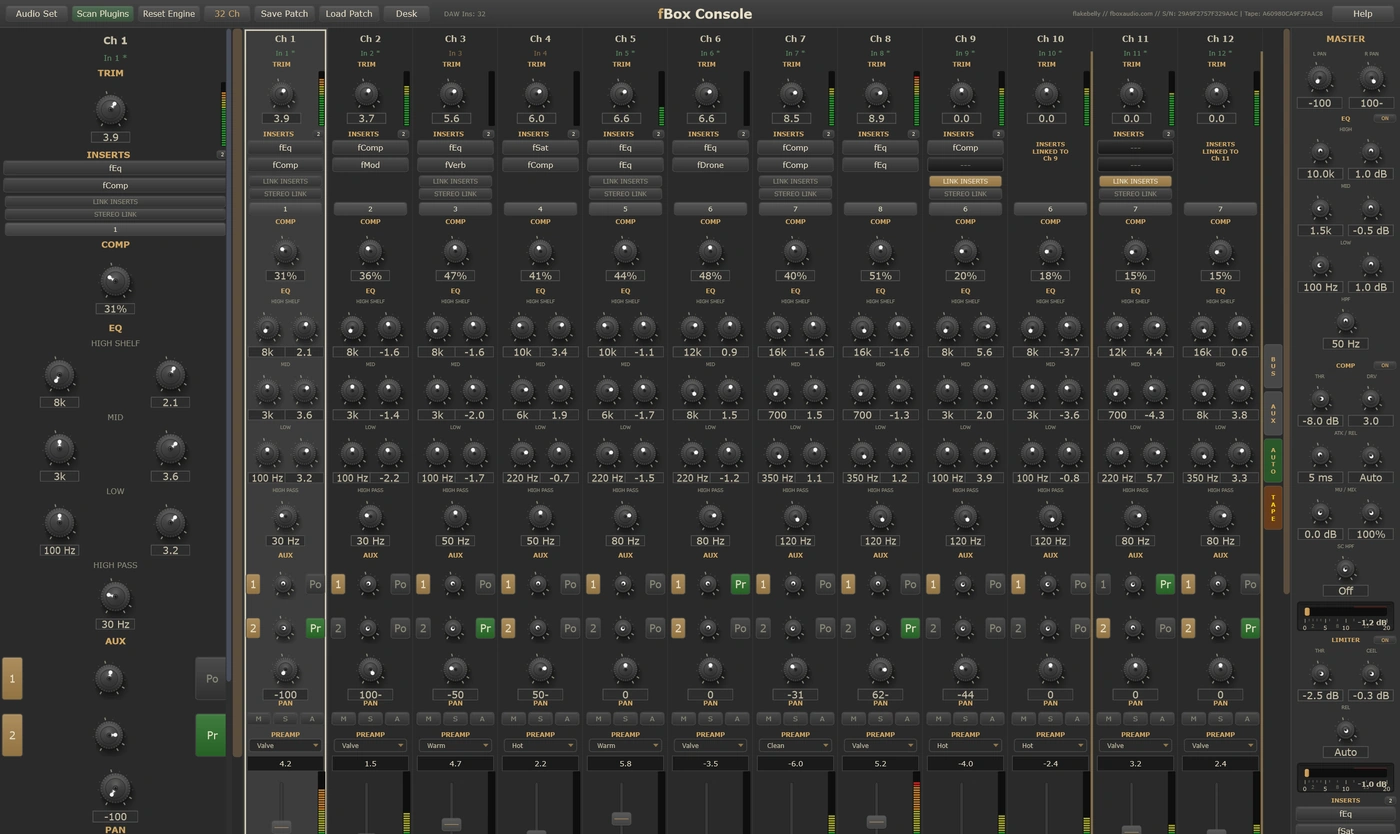
fBox Console is a complete virtual analogue mixing desk. 32 mono channel strips, 8 group buses, 2 stereo aux sends with returns, a stereo master section, and an integrated 16-track tape machine, all in one window. There are 300 insert slots across the desk, and every one of them hosts an fBox plugin: fComp, fEq, fPre, fSat, fMod, fVerb, fDelay or fDrone. fTape, fBox Rack and the Console itself do not go into a slot, and the desk brings its own 16-track tape machine anyway. It runs as a VST3 inside your DAW, or as a standalone application with no DAW at all, and one licence covers both.
It is not a collection of unrelated processors. It is one integrated desk, where levels, routing, and gain staging are part of the sound. The summing stages respond to how much signal is passing through them, so the mix thickens and settles as it fills out.
From simple summing to the full classic console experience
Route your DAW tracks into the console and use nothing but the faders and the non-linear summing stages. The bus summing and master section add depth and cohesion to your mix with zero configuration. Send your buses through the integrated tape machine for extra warmth and glue - choose from three tape speeds for anything from lo-fi saturation at 7.5 IPS to transparent warmth at 30 IPS, and drive the output amplifier to taste.
Use the channel EQ, compressor, preamp modes, and aux sends to shape your mix entirely inside the console. Group channels to buses with their own 3-band EQ, VCA bus compressor, and 4 insert slots. Shape the final mix with the master section's EQ, vari-mu compressor, diode limiter, and 4 more insert slots. Load fBox plugins into any of the 300 insert slots across channels, buses, aux returns, and master. Route individual channels to the tape machine for per-track saturation, or print your buses to tape as stereo pairs - the machine switches automatically between 16 mono tracks and 8 stereo tracks depending on what you feed it. Keep your DAW mixer clean.
Work the way engineers mix on real analogue desks. Record automation passes one at a time - fader balance first, then EQ, then panning, then effects sends. Layer unlimited passes. Lock the ones you are happy with. Build the mix over time.
Use your DAW's automation for some things and the console's pass system for others. The two systems run side by side. Use the console for the hands-on performance of a fader ride, and the DAW for precise surgical edits.
Channels, buses, aux returns, master
Every channel strip has an input trim, a switchable preamp with four modes, 8 insert slots, a single-knob channel compressor, a 4-band vintage-style EQ, 2 aux sends, pan, mute, solo, and a fader. The single-knob compressor is deliberate: one control, and it does the right thing to most sources without you thinking about it.
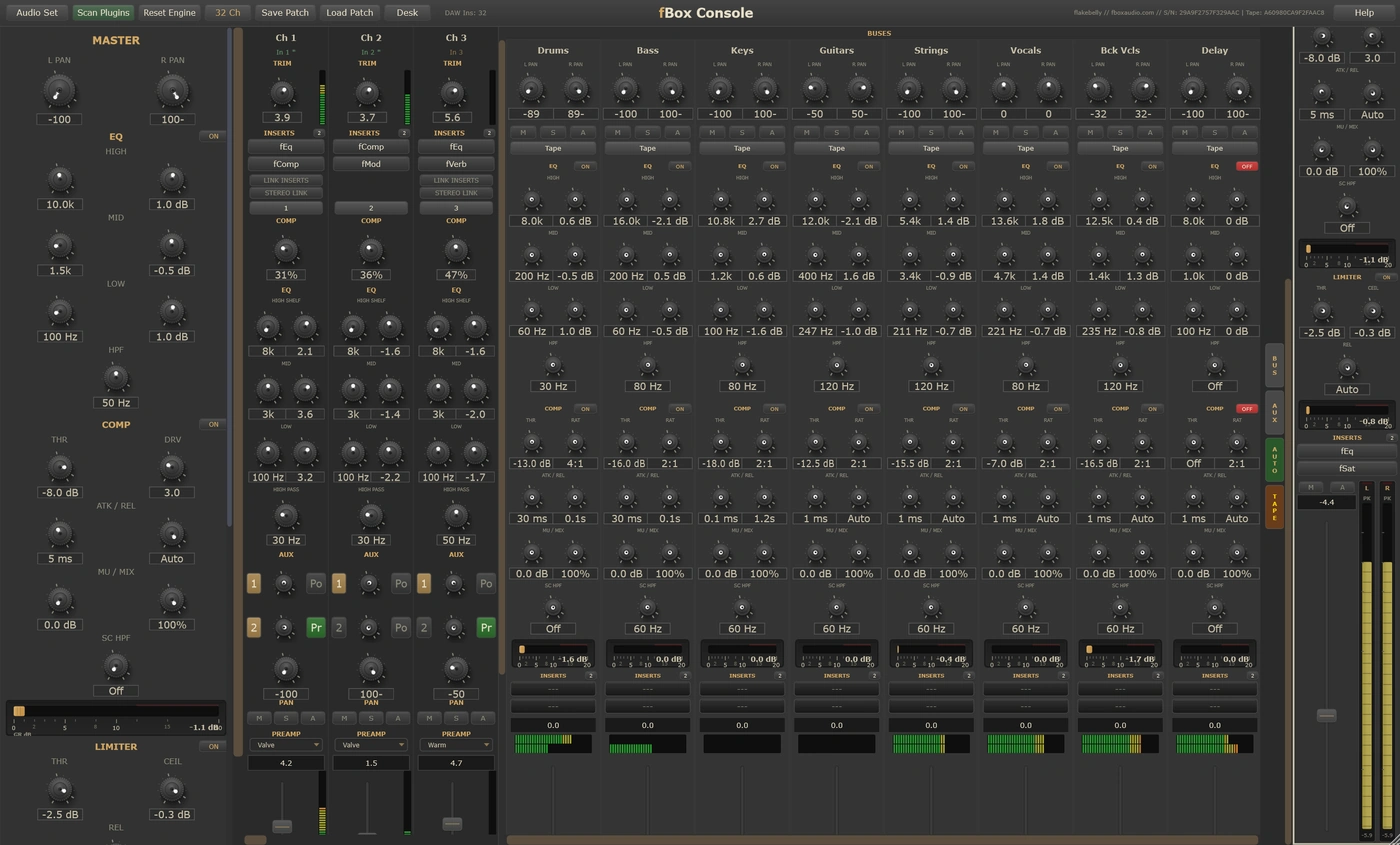
The 8 group buses each have a 3-band EQ with high-pass filter, a VCA bus compressor with auto release, 4 insert slots, and dual pan controls. The master section adds a summing amplifier, a vari-mu compressor for glue, a diode limiter for a musical ceiling, its own 3-band EQ with HPF, and 4 more insert slots. The 2 aux returns have 4 insert slots each.
Stereo linking joins two neighbouring channels into one. In the standalone it happens on its own: load a stereo file and the pair links, hard-panning each side, sharing controls, and folding one strip out of view. Linking inserts is a separate option. Two channels that are not stereo linked can still share an insert chain, so a compressor sees both of them and works as one stereo unit rather than two independent ones.
Build a mix up over time, the way engineers do on real desks
The console has its own automation system, completely independent of your DAW's automation lanes. Record fader rides, knob turns and mute presses on every channel, every bus and the master section, and play them straight back.
Create as many passes as you like and layer them on top of one another. Pass 1 might be your fader balance, Pass 2 your EQ moves, Pass 3 your panning. Each pass is independent, and you can lock the ones you are happy with so a later pass cannot disturb them. Build the mix up over an afternoon, or over a fortnight.
It records hosted plugins too. Grab a knob on an fComp sitting in an insert slot and the move writes to the active pass along with everything else. Gold rings around a knob and gold fader caps show you at a glance which controls automation currently owns.
And it never fights you. Take hold of any control during playback and your hand wins, right up until you let go, at which point automation quietly takes the control back.
16 tracks, wired into the desk rather than bolted on
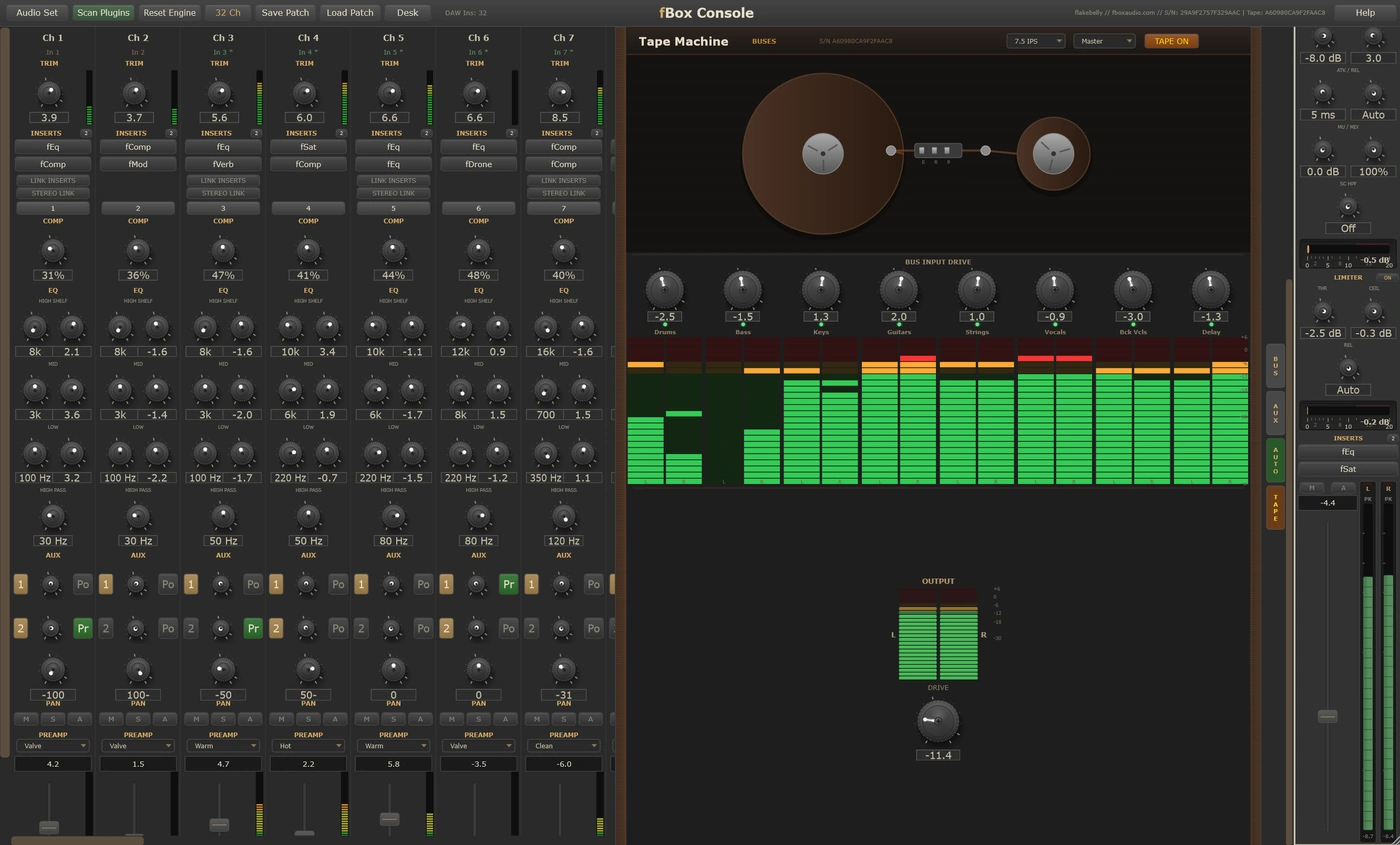
Route up to 16 individual channels to tape as mono tracks, or send all 8 group buses to tape as stereo pairs. The machine switches between the two automatically depending on what you feed it. It is one or the other, not both at once: channels or buses.
Three tape speeds, 7.5, 15 and 30 IPS, each with its own saturation character, low-end bump, top-end softening and wow and flutter behaviour. 7.5 is the dirtiest and 30 the most composed, and the difference between them is obvious the moment you switch.
Every track has its own character, drawn from the console's own serial, so no two tape paths sound quite the same. The output amplifier takes you from transparent level control at one end to heavy transistor saturation and transformer thickening at the other.
Every console has its own character. Find one you like and keep it.
Every fBox Console is minted with its own serial number and its own character, across all 32 channels, the 8 buses, the master section and every track of the tape machine. No two desks respond quite the same way when you push them.
Every new instance can be a different desk, or it can be the one you have chosen to keep. The Desk button in the header is where you decide.
Saved desks carry both serials, the console's and the tape machine's, so recalling one brings the whole desk back, tape and all. They live in your Documents folder where you can back them up, and the plugin and the standalone application share the same folder. Find a desk you love while working in your DAW and it is waiting for you in the standalone, and the other way round.
You cannot dial a desk's character up to order, any more than you can with a real one. But you can learn it, and you can keep it. Mix on one until you know how it responds, then pin it. Your ear adapts to a desk you stay with.
A complete mixing environment with no DAW at all
The standalone is not a cut-down version. It is the whole console, with the whole tape machine and the whole automation system, plus a front end of its own.
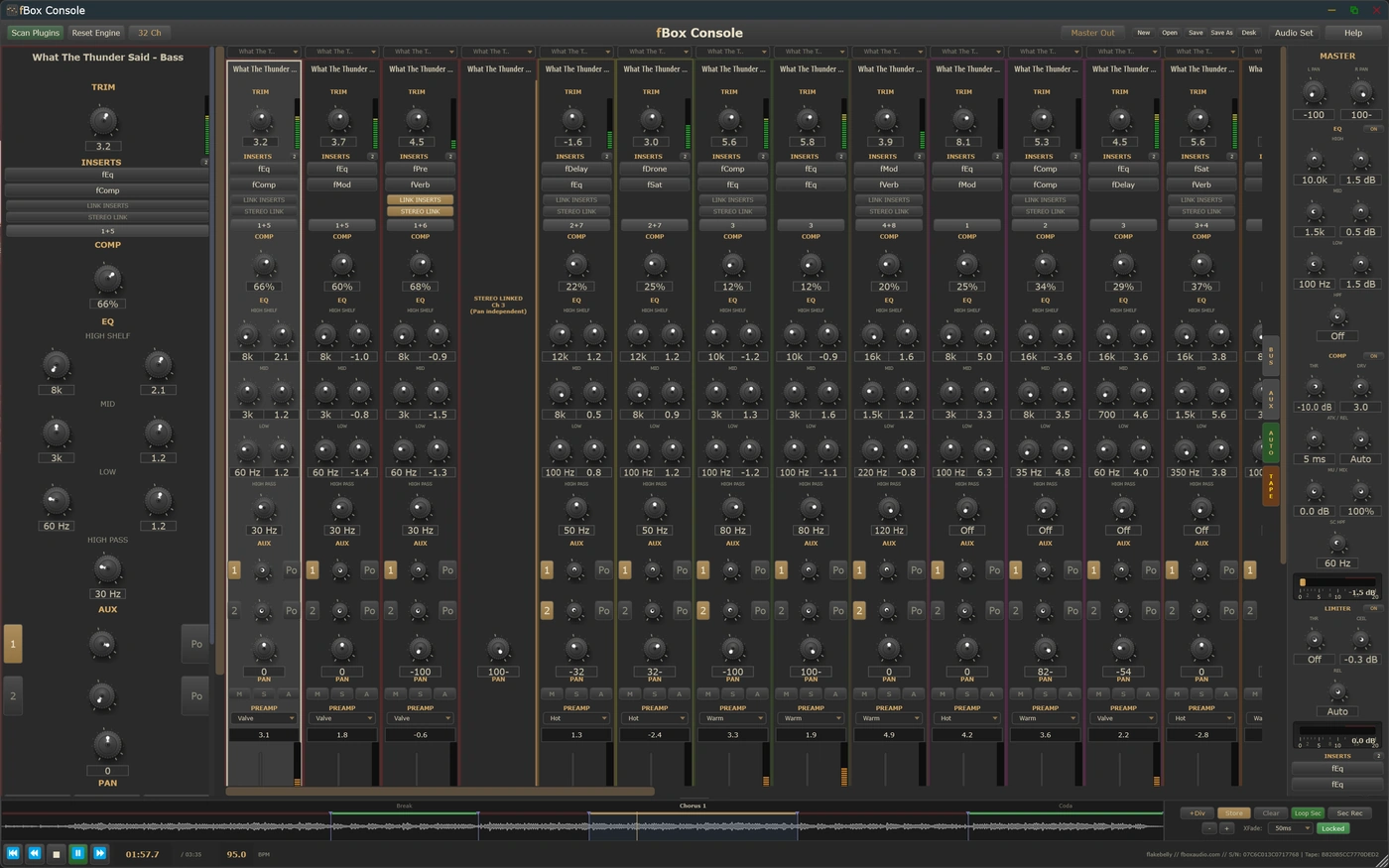
Load audio files straight onto any channel in WAV, AIFF, FLAC, OGG or MP3, at any sample rate or bit depth. A built-in transport gives you play, pause, stop, rewind and fast-forward. Along the bottom sits the arrangement strip, showing a composite waveform of everything loaded. Save and recall complete sessions, including channel assignments, plugin states and every automation pass.
The arrangement strip is also how you mix a song in sections. Drop dividers into the waveform to split the song up, name the regions, and store a snapshot of the whole desk into each one. A snapshot captures every channel control, all your routing and sends, every insert plugin and its bypass, the buses, the master, the stereo links, and the tape setup. Move the playhead into that section during playback and the console becomes that mix.
That is the workflow. Get the verse sounding right and store it on the verse. Push the drums for the chorus, open the vocal up, drop the mix onto tape, and store that on the chorus. The desk now plays the song, switching mixes at each boundary, in one pass. Lock a section once you are happy with it and its dividers cannot be moved and its snapshot cannot be cleared by accident.
Automation recording can be held to one section as well. Switch Sec Rec on and a pass writes only inside the section you are working in, so a move you record in the chorus cannot run past the boundary into the verse on either side of it.
When the mix is done, render offline at three tap points: a single channel's direct output, a bus output, or the final stereo master. Write WAV at 16, 24 or 32-bit float, AIFF, or FLAC, at your device's sample rate or one you choose.
The standalone console also solves a routing problem. Feeding 32 separate channels into a plugin needs a host that can route many inputs into one plugin, which some DAWs cannot do. If yours is one of them, the standalone gives you the full desk with none of the routing. Export your stems, drop them on the channels, and mix.
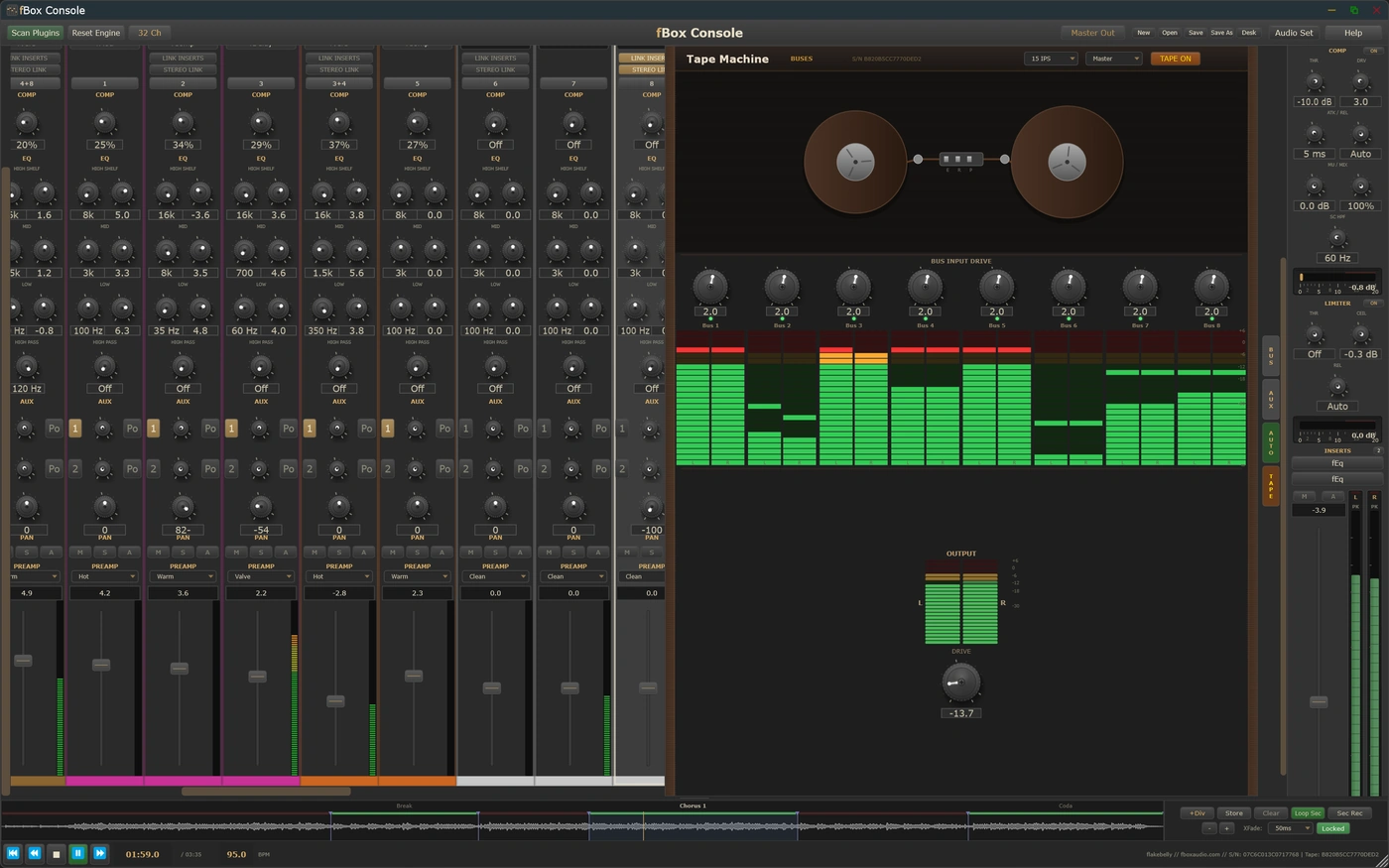
Input trim, 4-mode preamp, 8 insert slots, single-knob compressor, 4-band EQ, 2 aux sends, pan, mute, solo and fader on every one.
3-band EQ with HPF, VCA bus compressor with auto release, 4 insert slots and dual pan. Route any channel to any bus for stem and group processing.
Summing amplifier, vari-mu compressor, diode limiter, 3-band EQ with HPF, 4 insert slots and stereo metering.
Touch recording across as many layered passes as you like, with locking, and hosted plugin knobs recorded alongside the desk's own controls.
Three speeds, per-track drive, and an output amplifier that runs from transparent to thoroughly saturated. Channels as mono tracks or buses as stereo pairs.
Across channels, buses, aux returns and master, each hosting fComp, fEq, fPre, fSat, fMod, fVerb, fDelay or fDrone. Drag to move, Alt-drag to copy, per-slot bypass and fault isolation throughout.
Serial-seeded character across the whole console. Roll a new desk, save the ones you like, and pin your favourite so every instance opens as that one.
Split the song on the arrangement strip and store a snapshot of the whole desk into each section. The console reconfigures itself as the playhead moves. Standalone application.
One licence covers both. File loading, transport, arrangement strip, session save and offline rendering in the standalone application.
14-day free trial included - no payment required
The zip holds the plugin, the standalone application, and a one-page start guide and full PDF manual for each. New to this, or not sure where a .vst3 goes? Read the install guide.
Also available in The Full Studio