fComp

Multi-Mode Compressor

Nine Compression Engines - VST3

FET Opto VCA Vari-Mu PWM Diode Bridge Zener Gate De-Esser

fComp is nine compressors in one plugin. Not one compressor with nine presets: nine separate engines, each with its own controls and its own drive character. Every mode keeps its own settings, so switching between them never disturbs a setup you liked.

Each one is modelled on a different way of controlling gain, and each behaves like the hardware that method came from. The fast, coloured one. The smooth one with no timing knobs. The clean one built for the bus. The tube one that gets warmer the harder it works. There is no digital mode. fComp always behaves like a piece of gear.

Nine Compressors, One Plugin

Each with its own engine and its own set of controls

FET

The one you hear working

Fast, punchy and unapologetically coloured. It grabs a transient before it has finished happening and leaves a mark on everything it touches. An All setting engages every ratio at once, for the sound of a compressor pushed far past sensible.

Opto

The one you never hear working

There are no attack or release controls at all. The photocell decides its own timing, catching peaks quickly and letting go slowly. That is why this kind of compressor flatters a voice: it evens things out without you hearing it happen.

VCA

Holds a mix together

Clean, precise and predictable, with an auto release that follows whatever you feed it. Two or three dB of it and a pile of separate tracks starts sounding like one record.

Vari-Mu

Warms up as it works

The valve is doing the compressing, so the colour and the control arrive together and you cannot have one without the other. The heaviest transformer sound of the nine, and it will not over-grab however hard you lean on it.

PWM

Clean or filthy, your choice

Left alone this is one of the cleanest compressors here, riding levels without leaving fingerprints. Then there is the Chop knob: turn it up and in come the artefacts, the transformer warmth and the faint hiss of old broadcast gear.

Diode Bridge

The one that eases in

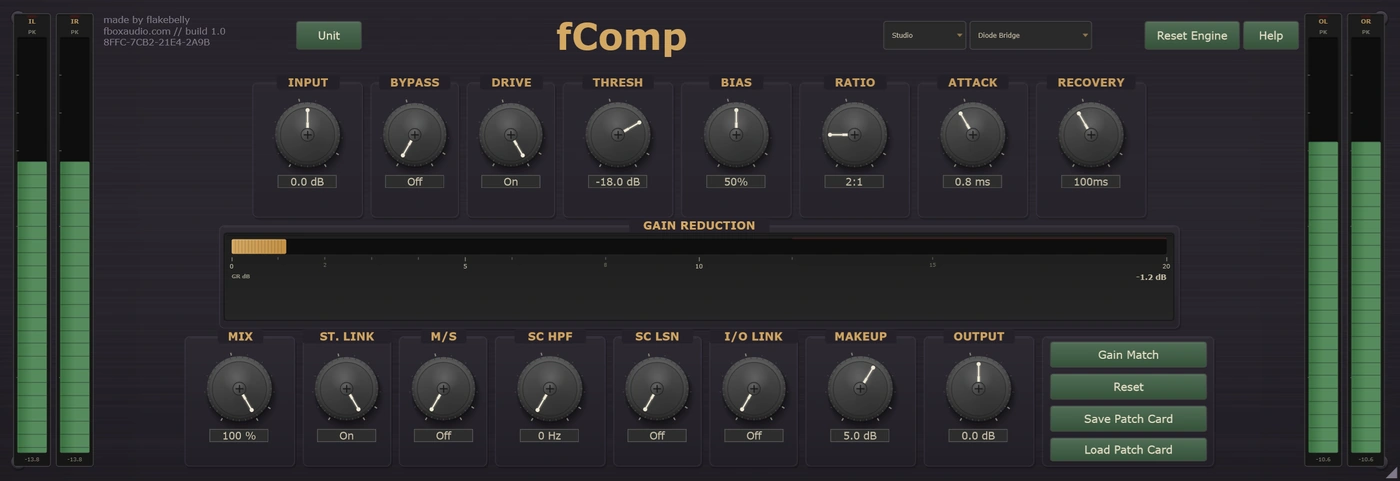
Germanium diodes give it a naturally soft knee, so the compression arrives gradually instead of snapping on, warming as it goes. The controls are stepped, so there are no awkward in-between values to land on.

Zener

Catches peaks and stops

Clean until the threshold, then a sharp turn into limiting that holds the level without softening the front of the sound. A THD switch takes the compression out altogether and leaves only the saturation, for colour with no dynamics change.

Gate

Three tools in one

Silence what you do not want between the hits, thin it out gently instead of cutting it dead, or duck one sound out of the way whenever another arrives. Trigger it from another track, or from a single frequency band.

De-Esser

Takes the harshness out

It listens to one band and pulls the level down only when that band gets too loud, so the hiss on an s disappears and the rest of the voice stays where it was. Two ways of doing it: one touches only the top, the other dips everything a fraction, which can sound more natural.
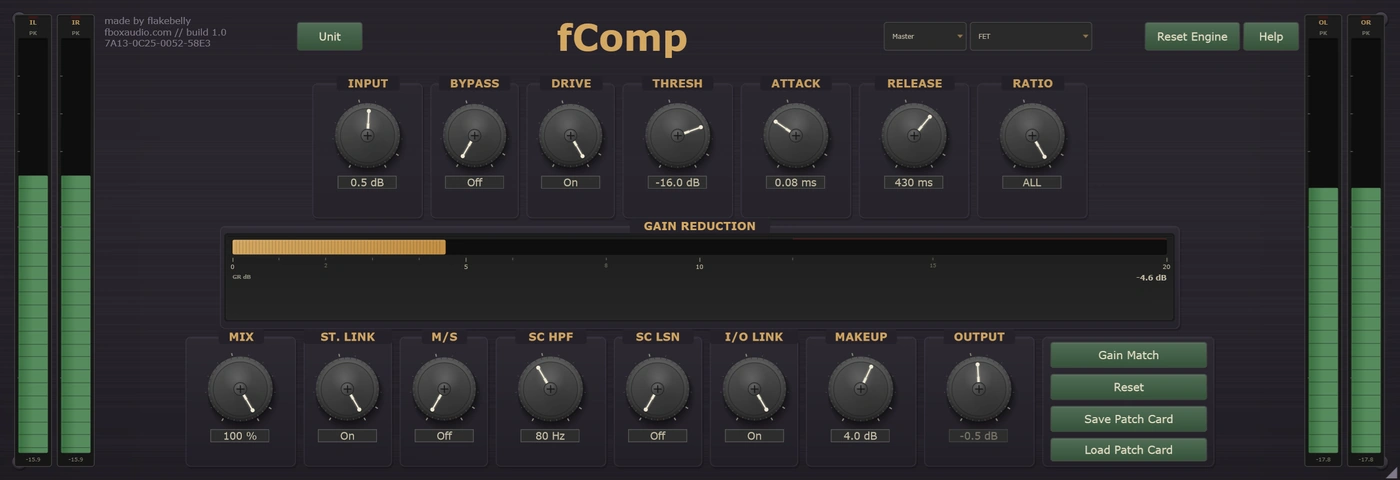
fComp - FET mode
fComp - FET mode with gain reduction metering

Drive

Every mode saturates in its own accent

Switch Drive on and the unit adds harmonic saturation and transformer colour that grow with how hard you push it. Gentle at rest, obvious when driven.

The character is different in every mode, because each is saturating the way its circuit would: FET grit in FET, tube warmth in Opto and Vari-Mu, a tight controlled push in VCA, round germanium colour in Diode Bridge, and a harder, hotter edge in Zener. PWM does away with the switch altogether and gives you a continuous Chop knob instead.

Because input trim sits before the saturation, it works as a drive control as much as a level control. Turn it up to push harder without touching the threshold, and use I/O Link to keep the output where it was while you do it.

fComp - Diode Bridge mode
fComp - Diode Bridge mode with stepped controls

Shared Controls

The same toolkit, whichever mode you are in

Mix

A dry/wet blend on every mode. Around 40 to 60% gives you punch without flattening the dynamics.

Sidechain Filter

A high-pass on the detector so bass stops pumping the whole mix. Applies to the internal and external sidechain alike.

External Sidechain

Route another track in and it drives the detector while compression stays on your main audio. An indicator lights when one is connected.

Sidechain Listen

Swaps the output for the detector signal, so you can hear exactly what the compressor is reacting to before you commit.

Stereo Link and M/S

Link the detector across both channels to hold the stereo image, unlink to compress each side on its own, or work on mid and side separately.

Gain Match

One button estimates the makeup needed to match bypassed level, so an A/B tells you whether it sounds better rather than just louder.

Soft Bypass

Takes the compression out so you can hear what you have done, but leaves the trims and the makeup gain in circuit so the level does not jump. An honest A/B. Use your host's bypass when you want a completely clean one.

Every parameter is automatable from your DAW, and fComp runs anywhere the suite does: on a track in your DAW, in an insert slot in fBox Console or the standalone application, or in a slot in fBox Rack.

Your Unit

Every unit is different. Keep the one you like.

Serial No. 7C4A-19E8-B035-D6F1

Every instance is minted with its own serial number and its own character, the small manufacturing differences that make this unit sound like this unit and no other.

Set two fComps identically and you will hear it. One grabs a snare a little faster. The other lets the transient breathe before pulling it back. Push them both into gain reduction and one is warmer while the other has more bite. The threshold sits a hair differently, the timing has its own feel, the saturation starts at its own point, and the output has its own colour. Vari-Mu varies the most of the nine, the way real tube hardware does.

Every new instance can be a different unit, or it can be the one you have chosen to keep. The Unit button beside the serial is where you decide.

Saved units live in your Documents folder, a folder per product, so you can find them, back them up and copy them between machines.

A unit is the character. A patch card is the character plus everything you set on top of it. Save a patch card and it carries the unit it was made on as well as the settings, so loading one back gives you a choice: Recall Unit brings that machine back with it, character and all, while Apply Settings Only keeps the unit you are on now and takes just the knob positions.

You cannot choose a unit's character any more than you can choose the character of a real machine. But you can learn it, and you can keep the one you love.

At A Glance

Nine Modes

FET, Opto, VCA, Vari-Mu, PWM, Diode Bridge, Zener, Gate and De-Esser. Each a dedicated engine with its own controls, not a preset.

Independent Per Mode

Every mode remembers its own settings. Switch away to try something else and switch back to find your setup exactly as you left it.

Drive Stage

Harmonic saturation and transformer colour that respond to level, with a different character in every mode. PWM swaps it for a continuous Chop knob.

Sidechain Tools

Detector high-pass, external sidechain input, sidechain listen, stereo link, mid/side processing, and I/O link for level-matched driving.

Gate and De-Esser Built In

Gate, expander and ducker in one mode. Split and Wide de-essing in another. Two more jobs covered without another plugin.

Gain Match

One-click makeup estimation for an honest A/B, so you judge the sound rather than the level.

Your Own Unit

Serial-seeded character throughout the signal path. Roll a new one, save the ones you like, and pin your favourite so every instance opens as that unit.

Three Quality Tiers

Eco for tracking and dense sessions. Studio for mixing. Master for final mixes and mastering.

14-day free trial included - no payment required

The zip holds the plugin, a one-page start guide and the PDF manual. New to this, or not sure where a .vst3 goes? Read the install guide.

Also available in The Processors, The Full Outboard Suite and The Full Studio

System requirements →

The rest of the suite